WiFi QR code for guests: one scan to join
A WiFi QR code for guests turns the most tedious part of hospitality — spelling out a password across a noisy room — into one gesture. The phone reads the network name and password from the code, shows a Join button, and connects. This guide builds one for a guest network and covers the details that decide whether it works on an iPhone in low light.
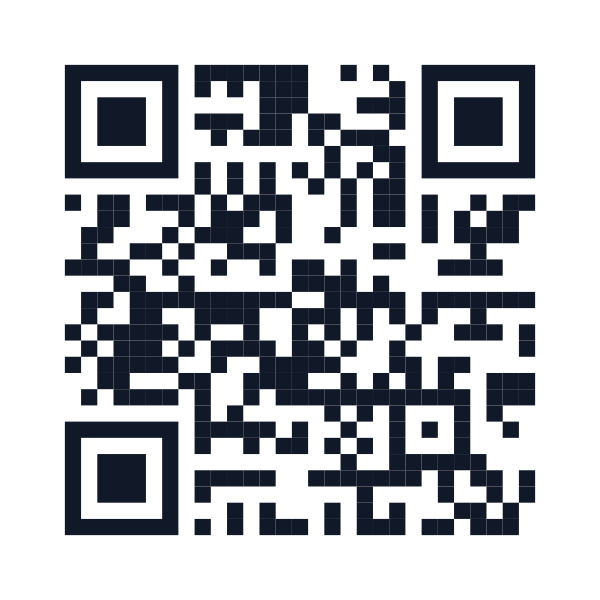
CafeGuest with the password flatwhite24, so scanning it will not connect you to anything — the format is what matters. Your own network name and password go in the same two fields.What is inside a WiFi code
The code holds the network name and password as plain text in a format phones already recognise, starting with WIFI:. Nothing is sent to a server; the phone reads the text and talks to your router exactly as if the password had been typed.
| Field | Meaning | What to put there |
|---|---|---|
T: | Security | WPA for WPA2 and WPA3, WEP only for very old routers, nopass for an open network. |
S: | Network name (SSID) | Exactly as the router broadcasts it, capitals and spaces included. |
P: | Password | Case sensitive. Leave it empty when the network is open. |
H: | Hidden network | true only if the router does not broadcast its name. |
If the network has a separate password for a captive portal — the page where guests tick a box — the code gets them onto the network but they will still see that page. That is normal and worth a line of small print on the card.
Before you make the code
- Use a guest network. Most routers offer one that keeps visitors away from your computers, printer and shared files. A code on a table gives away whatever network it points at, so point it at the guest one.
- Get the exact name. Open the wifi settings on a phone that is already connected and copy the name character by character. A trailing space is a common invisible mistake.
- Decide who may know it. A printed code is a password on the wall. If that is not acceptable, do not print one.
Make the code in four steps
- Open the WiFi generator on this site.
- Type the network name, then the password. Choose the security type your router uses — WPA2 and WPA3 both count as
WPA. - Tick "hidden network" only if the router really hides its name.
- Download the SVG for print, or the PNG for a phone or a screen. Keep a copy of the design file: if you change the password you will print again.
The generator shows one line of plain text next to the preview — the exact string inside the code. Read it once. A missing semicolon or a misplaced field is invisible in the picture and obvious in the text.
Passwords with awkward characters
The format uses semicolons and colons as separators, so those characters inside the name or password must be escaped with a backslash. A password of tea;time is stored as tea\;time, and a network called Cafe:24 becomes Cafe\:24. Backslash, comma and double quote are escaped the same way.
The generator does this for you, but there is a better fix: use a password made of plain letters and digits. Guests who cannot join because of an escaped character will not tell you — they will just use their mobile data.
Handing out a password safely
- Guest network, not the office LAN. The whole point is that a stranger on the code cannot reach your files.
- Do not post the code online. A photo on social media is a password shared with everyone who finds the photo.
- Plan for a password change. Keep the source design so a new code means five minutes, not a redesign. Print on a card you can replace, not on a painted wall.
- Switch the guest network off after the event. The printed code stops working without you having to collect the cards.
- Never encode a network you do not own. Ask the owner first, even in a rented office.
Printing and placing
A WiFi code carries very little text, so the pattern stays open and scans easily. Even so, print it large enough to be read from where a guest stands:
- At least 3 cm across on a table card, 6–8 cm for a wall sign.
- Black on white, with a clear white margin around the code.
- Matte paper or matte laminate. Gloss reflects ceiling lights into the camera.
- Keep it flat; a card taped around a bottle or a curved stand is much harder to scan.
- Add one line of text: the network name, and the password in small type, so nobody is stuck when a camera refuses.
When a guest cannot connect
- Wrong security type. WPA2 and WPA3 must go in as
WPA. ChoosingWEPmakes modern phones fail. - The name does not match. Compare against the router's own settings page, not against memory.
- Enterprise networks. Networks that ask for a username as well as a password cannot be carried by this format. Guests must type those credentials.
- The router limits devices. Some routers cap the number of clients or require the owner to approve each one.
- The card is too small, glossy or crumpled. Rescan closer, or reprint matte at a larger size.
Frequently asked questions
How do I make a WiFi QR code for guests?
Open the free WiFi QR code generator, type the guest network name and password, choose WPA, then print the code at 3 cm or more. It runs in your browser, with no signup and no watermark, so the password is never uploaded.
Do iPhones and Androids both join from a WiFi code?
iPhones recognise it in the Camera app from iOS 11 onwards. Android handles it in the camera and in the quick settings scanner from Android 10. Older Android versions may need a free scanner app, which is why the printed password is worth keeping.
Can a WiFi code be used without asking?
Yes. Anyone who sees it can join, and the phone remembers the password afterwards. Treat the printed card as a password, and use a guest network that you can switch off.
Why does the code connect but no page loads?
That is usually the captive portal: the network lets you on, then asks you to accept terms on a page. Nothing is wrong with the code, but the card should mention the extra step.
Read next: Restaurant menu QR code free: how to make one that works — Link or text, how big to print, and one code per table if you want to learn something.